Fixes · Klaviyo sign-up forms
Klaviyo form says thanks but no subscriber is added
The fix
First rule out the settings: double opt-in on the list, a form that adds people to a different list, and Klaviyo’s Shopify sync.
If those are right and your form runs on custom code, look at what it does when Klaviyo doesn’t answer. It should only say thanks once Klaviyo confirms. Otherwise it should save the email another way, such as Shopify’s own newsletter form, or show an error.
01Why the form says thanks anyway
A thank-you message tells you the form’s own code finished. It doesn’t tell you Klaviyo added anyone to a list. The two come apart for one of two kinds of reason: a setting, or the code behind the form.
The usual causes
These are the answers you’ll find on Klaviyo’s community forum and in its help pages. Check them first; they’re quick.
- 01
Double opt-in is on for the list
People join the list only after they click the confirmation email. Until then, a sign-up through a Klaviyo form leaves a profile with no list. On one community thread (Nov 2021) this was the cause: the owner had tested with a variant of their own address, so the confirmation never arrived.
- 02
The form adds people to a different list
The profile appears in Klaviyo but not on the list you’re watching. Klaviyo’s answer on this thread (Apr 2022) was to open the profile and see which lists it joined.
- 03
A Shopify form, with Klaviyo’s sync off
A theme’s own newsletter form saves the email in Shopify, not Klaviyo. It reaches a Klaviyo list only through Klaviyo’s Shopify integration, with Sync your Shopify email subscribers to Klaviyo ticked.
- 04
Klaviyo installed twice
A Klaviyo employee listed this on the 2021 thread: two copies of Klaviyo’s script on the site, pointing at different accounts. Keep one, tied to the right account.
“Only subscribers who confirm their subscription will be successfully added to the list, and get queued for a welcome series.”
The one those answers miss: custom code that says thanks anyway
Some Shopify stores keep the theme’s own newsletter form and hand the email to Klaviyo with a few lines of JavaScript: to show a discount code in the theme’s own pop-up, say, or to keep the theme’s design. That code stops the theme’s normal form post, sends the email to Klaviyo, then shows a message.
The bug is in the last step. If the thanks runs whatever Klaviyo said, every failure looks like a success. This is the shape of it, from code we fixed on a live store (generalised):
form.addEventListener('submit', async (event) => {
  event.preventDefault();            // the theme's own Shopify post never runs
  event.stopImmediatePropagation();

  try {
    const code = await sendToKlaviyo(email);
    showThanks(code);
  } catch (error) {
    console.error(error);
    showThanks(null);                // a failure gets the same thanks
  }
});
On that store, sendToKlaviyo failed straight away if Klaviyo’s form hadn’t loaded yet when someone pressed the button, failed if the form or its fields weren’t found, and gave up after 15 seconds without an answer. Every one of those ran the same thanks. And because the code had already stopped the theme’s form, nothing was saved anywhere: not in Klaviyo, not in Shopify.
That’s why the settings checks above come back clean. When the failure happens before Klaviyo receives anything, Klaviyo has no sign-up to count, and the only trace is an error in the shopper’s own browser.
02Check the settings, then the code
For store owners: the settings
Check the list’s opt-in
In Klaviyo, open the list, then Settings > Consent. With double opt-in on, people join only after they click the confirmation email. That’s often what you want; know it’s on before you test.
See where a sign-up went
Go to Audience > Profiles, search for the address and open the profile. The Lists and segments tab shows every list it’s on. If it’s on the wrong one, change the list the form adds people to.
If your form is the theme’s own, turn on the sync
In Klaviyo’s Shopify integration, under Sync settings, on the From Shopify tab, tick Sync your Shopify email subscribers to Klaviyo, choose your main list and save.
Settings right, sign-ups still missing? It’s the code
If your theme’s form shows a Klaviyo discount code, or a developer has added sign-up code, send them this page.
For developers: only say thanks on a confirmed sign-up
The rule: show success only when Klaviyo confirms. When it doesn’t, hand the submit back to the theme’s own Shopify newsletter form, and if that doesn’t go through either, show an error. Here is the shape of the fix we shipped:
form.addEventListener('submit', async (event) => {
  if (form.dataset.fallback === 'on') return; // let the theme's Shopify post through

  event.preventDefault();
  event.stopImmediatePropagation();

  let code = null;
  try {
    code = await sendToKlaviyo(email); // rejects on a timeout or a missing form
  } catch (error) {
    console.error('Klaviyo did not confirm; saving through Shopify instead', error);
  }

  if (code) {
    showThanks(code);
    return;
  }

  submitThroughShopify(form, () => {
    showError('Sorry, we could not sign you up. Please try again in a moment.');
  });
});

function submitThroughShopify(form, onFail) {
  let leaving = false;
  window.addEventListener('pagehide', () => { leaving = true; }, { once: true });

  form.dataset.fallback = 'on';
  form.requestSubmit(); // a real submit event, so Shopify's CAPTCHA can add its token

  setTimeout(() => {
    if (leaving) return; // the page is posting: Shopify shows its own result
    form.dataset.fallback = '';
    onFail();
  }, 30000);
}
Three things that matter here:
- Use
requestSubmit(), notsubmit(). Shopify runs an invisible hCaptcha on newsletter forms by default (Shopify Help), and on the store we fixed it added its token only on the form’s own submit event.submit()skips that event (MDN). On the store we fixed, the script also waits up to six seconds for the CAPTCHA to attach to the form before it submits. - Don’t post the form in the background. A background
fetchto the store’s/contactaddress was refused with a 400 “Missing CAPTCHA token” when we tried it on 22 Oct 2026. - Check what the theme shows after the post. The page reloads with Shopify’s result. On the store we fixed, the theme’s stylesheet hid Shopify’s error inside the theme’s message box, so the box opened empty; the script now makes the error visible.
The theme’s own form is what the fallback submits. Shopify’s own Dawn theme marks it with a hidden newsletter tag; with contact[email], Shopify creates a customer who has agreed to email marketing (Shopify, Email consent), and, with the sync on, Klaviyo’s Shopify integration carries them to your list.
{%- form 'customer', id: 'NewsletterSignup' -%}
  <input type="hidden" name="contact[tags]" value="newsletter">
  <label for="NewsletterEmail">Email</label>
  <input id="NewsletterEmail" type="email" name="contact[email]"
    autocomplete="email" required>
  <button type="submit">Subscribe</button>
{%- endform -%}
If you don’t need a Klaviyo form on the page at all, Klaviyo’s client API takes a sign-up directly, and its answer tells you whether it was accepted. It lists 202 as success. Treat anything else as a failure and fall back as above:
async function sendToKlaviyo(email) {
  const body = {
    data: {
      type: 'subscription',
      attributes: {
        profile: { data: { type: 'profile', attributes: { email } } },
      },
      relationships: { list: { data: { type: 'list', id: 'YOUR_LIST_ID' } } },
    },
  };
  const response = await fetch(
    'https://a.klaviyo.com/client/subscriptions?company_id=YOUR_PUBLIC_API_KEY',
    {
      method: 'POST',
      headers: { 'Content-Type': 'application/vnd.api+json', revision: '2026-10-15' },
      body: JSON.stringify(body),
    },
  );
  if (response.status !== 202) throw new Error('Klaviyo answered ' + response.status);
  return true;
}
Use the public API key (site ID) here, never a private key (Klaviyo developers, Create Client Subscription). Without a subscriptions field, Klaviyo subscribes the person to email marketing. With double opt-in on, a sign-up through the API joins the list once the person confirms.
What the form should say in each case
The message has to match what happened. There are three outcomes, and custom forms tend to forget the second: with double opt-in on, a sign-up Klaviyo has accepted isn’t on the list yet.
- 01
Accepted, no confirmation needed (single opt-in)
The person joins the list straight away (Klaviyo). Say thanks, and if there’s a discount, show the code now.
- 02
Accepted, waiting for confirmation (double opt-in)
Klaviyo emails them a confirmation link, valid for 72 hours, and they join the list and get the welcome series only once they click it. Say so: “Check your inbox to confirm your subscription.” If there’s a discount, say it arrives once they confirm, and send it in the welcome email, which only people who confirmed receive.
- 03
Failed
Klaviyo didn’t answer, or answered with an error. Save the email another way (above, the theme’s own Shopify form), and say thanks only if that went through. If it didn’t, show an error and ask them to try again. Never say “check your inbox” or promise a code: no email is coming.
Your code can’t tell the first two apart from Klaviyo’s answer. The client subscriptions API lists one success answer, 202, and it doesn’t say whether a confirmation email went out. The difference is the list’s setting, so check Settings > Consent on the list (step 1 above), write the message for that setting, and change the message if you ever change the setting.
The same goes for Klaviyo’s own forms. Klaviyo’s guide says to “update the language on your success message” to match the list’s opt-in, and suggests a code on the success message mainly for single opt-in lists, “to prevent people from signing up to receive the discount but not confirming their email address” (Klaviyo, tiered discounts). A coupon block on the success step shows its code in the form itself, so with double opt-in on, people see the code before they confirm.
03Sign up on every form, then compare the numbers
Sign up on every form
Use an address you can open. Try each form on the site (footer, pop-up, any landing page), on a phone and on a computer. If the list uses double opt-in, click the confirmation email.
Find each sign-up in Klaviyo
In Audience > Profiles, search for the address and open it. Lists and segments should show your list; the Details tab shows its subscription status, with a green tick against email.
If the form posts through Shopify, look there too
Search for the address in Shopify admin, under Customers.
Once a week, compare two numbers
The form’s Submits (in Klaviyo, Sign-up forms, the three dots next to the form, then Analytics) against the list’s growth for the same week (Audience > Lists & segments, open the list, List growth, viewed by week). A big gap means people press the button and don’t land on the list. Submits count every press, not people, and a custom form that fails before Klaviyo sees anything adds to neither number: only a test sign-up catches that.
For developers: make Klaviyo fail on purpose
Block Klaviyo’s script in your browser’s developer tools and sign up. You should get Shopify’s result after the page reloads, or the error. Never a thanks with nothing behind it.
From our work
04Our own bug, on Thameen London’s store
Thameen London, a luxury fragrance house whose store we built and look after, gives new subscribers 10% off. Its footer and pop-up forms are the theme’s own Shopify forms. A script we added in April 2026 takes over both: it puts the email into a Klaviyo form hidden on the page, waits for Klaviyo’s answer and shows the unique code Klaviyo returns. The code shows as soon as the form is sent: the hidden Klaviyo form carries it on its success step.
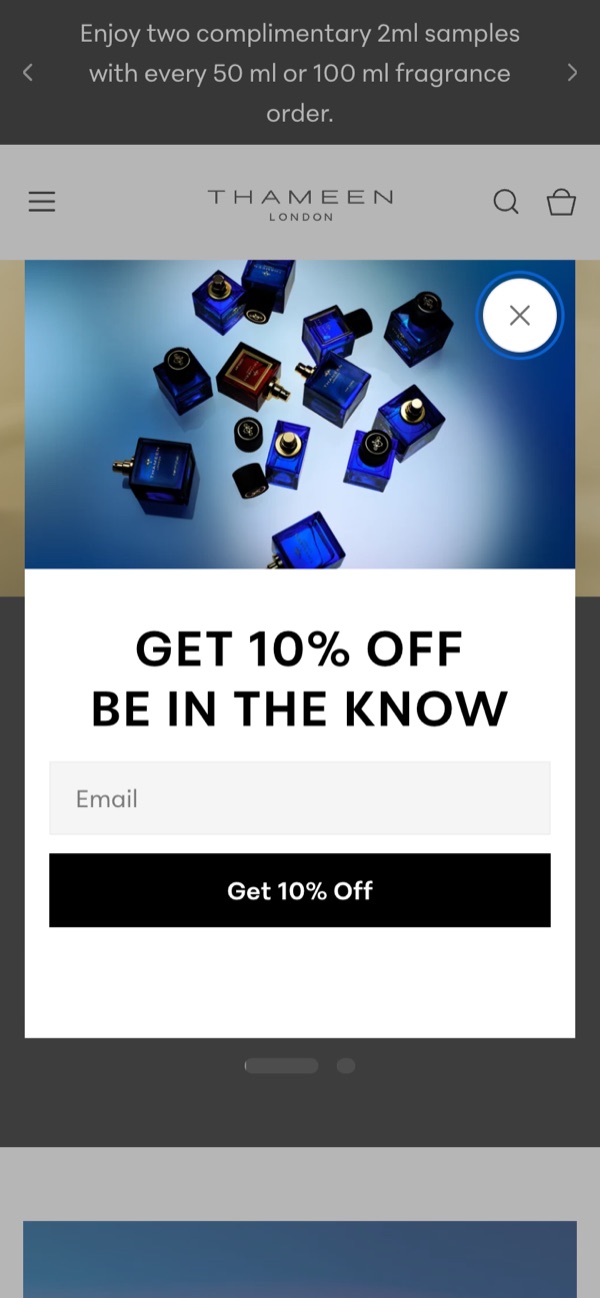
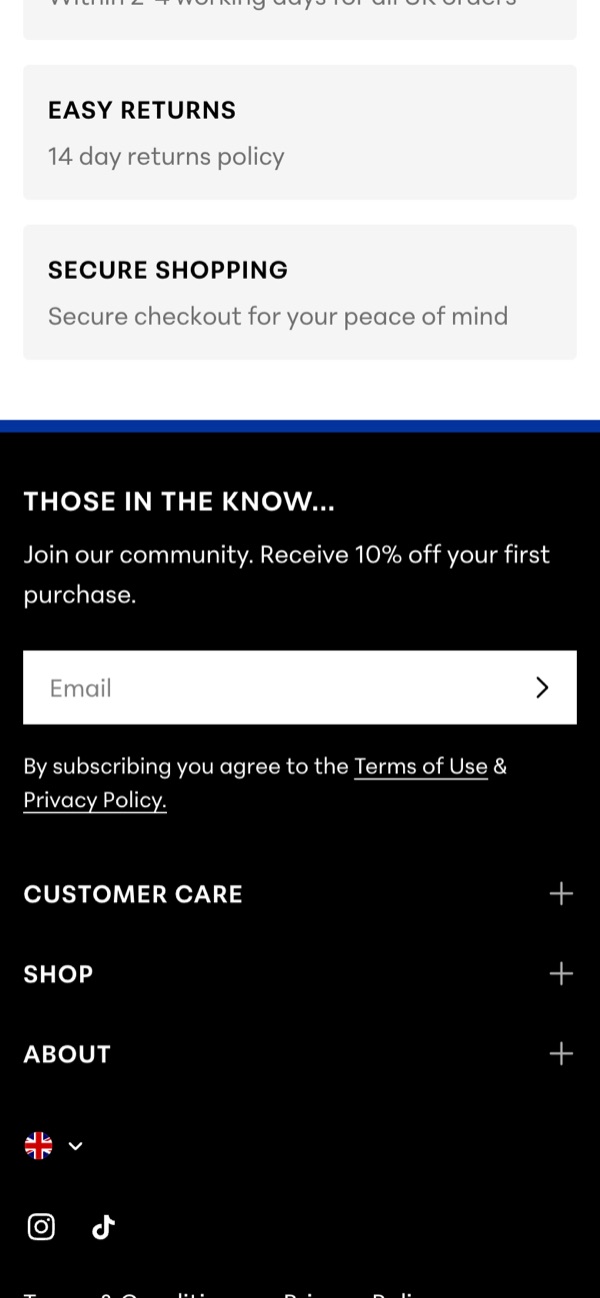
Before. The script was ours, and so was the bug. When Klaviyo didn’t confirm, the script ran its success step anyway, with no code. That step opens the theme’s message box, and the theme’s stylesheet hides the thanks line inside it, so the shopper saw an empty box. The email went nowhere: the script had already stopped the Shopify form, and Klaviyo hadn’t taken it.
After (22 Oct 2026). The 10% code shows only when Klaviyo returns one; that path didn’t change. Otherwise the same press submits the theme’s own Shopify form, so Shopify’s CAPTCHA adds its token and saves the customer with the newsletter tag. If the page hasn’t moved on after 30 seconds, the message box says sorry and asks them to try again.
We can’t say how many sign-ups were lost before the fix. A failed try left nothing behind but an error in the shopper’s own browser.
- In our live log“Sign-up forms save the email even when the discount service is unavailable”
The bigger picture
05Code that says it worked without checking
A form that says thanks without checking is custom code written for the day everything works. Ask the same of any custom code on your store that calls another service and then tells the shopper it worked: what does it do when that service doesn’t answer?
If your store carries custom code nobody has looked at since launch, or you’re finding problems like this one by chance, that’s what our support work is for: a steady run of fixes, each checked on the live store.
06Sources
Every step and claim above comes from one of these, or from the fix on the store it describes.
- Klaviyo Help Center: Understanding the double opt-in process
- Klaviyo Help Center: How to add coupon codes to sign-up forms
- Klaviyo Help Center: How to use sign-up forms to offer tiered discounts
- Klaviyo Help Center: How to sync Shopify email subscribers to a Klaviyo list
- Klaviyo Help Center: Understanding profiles in Klaviyo
- Klaviyo Help Center: Understanding sign-up form analytics
- Klaviyo Help Center: List growth reporting reference
- Klaviyo developers: Create Client Subscription
- Klaviyo Community: Shopify newsletter signup form not adding to klaviyo list (Nov 2021)
- Klaviyo Community: Subscribed user from shopify website not showing in Klaviyo list (Apr 2022)
- Klaviyo Community: Why are emails from my signup form not added to my Newsletter list? (Jun 2024)
- Shopify developers: Email consent
- Shopify Help Center: Setting your online store preferences (spam protection)
- Shopify’s Dawn theme: the footer newsletter form
- MDN: HTMLFormElement.requestSubmit()
Sources checked on .